What changes on April 14, 2026
Google launched Chrome Skills on April 14, 2026. A free feature, integrated directly into Chrome, that turns Gemini into an instant product comparator for every browser user.
The principle is simple: you save your best Gemini prompts as “Skills” in your browser. One click, and Gemini executes the prompt on one or multiple open pages simultaneously. Google explicitly cites side-by-side product comparison across tabs as one of the flagship use cases (Google Blog, April 14, 2026).
This guide explains how to configure Chrome Skills from A to Z, and more importantly why it’s a critical signal for your AI visibility strategy.
What Chrome Skills is, concretely
A Skill is a saved Gemini prompt. You write it once, reuse it in one click. The Skill is stored in your Google account and synced across all your Chrome desktop devices.
Official use cases provided by Google at launch:
- Shopping: compare specs of 3 products opened in 3 different tabs, analyze product ingredients, gift recommendations by budget
- Learning: summarize an article, generate a quiz from a page, extract key concepts
- Research: fact-check, extract data, cross-reference multiple sources
- Productivity: extract action items from long documents, synthesize a meeting
Chrome Skills is powered by Gemini 3 Flash by default, with Gemini 3 Pro available via the model picker (Google Blog - Gemini 3 in Chrome).
Requirements to use Chrome Skills
Before you start, check these 5 prerequisites.
| Requirement | Expected value |
|---|---|
| Platform | Desktop only (Mac, Windows, ChromeOS). No mobile at launch. |
| Chrome version | Latest (server-side rollout, no minimum version published) |
| Google account | Signed in on Chrome. Personal or Workspace. |
| Browser language | English (United States) only at launch |
| Subscription | None. Chrome Skills is free. No Google AI Pro needed. |
For Workspace accounts: admins must enable Gemini in Chrome via Admin Console > Generative AI > Gemini app, or via Chrome Enterprise Core (Google Workspace Admin Help).
Step 1: prepare your Chrome
Check Chrome version
- Open Chrome
- Type
chrome://settings/helpin the address bar - Chrome checks for updates automatically and installs them
- Restart Chrome if prompted
Check browser language
- Type
chrome://settings/languagesin the address bar - Make sure “English (United States)” is at the top of the list
- If the language is missing, click “Add languages”, select “English (United States)”, then move it to the top
- Restart Chrome
Check that Skills is available
Type chrome://skills/browse in the address bar.
- If you see the Skills library with categories (Shopping, Learning, Research, etc.), you’re good, Skills is active on your account
- If you see a “Not found” page, the rollout has not yet reached your account. Wait a few days, Google is running a gradual rollout.
Step 2: access the Gemini panel
Three methods to open the Gemini side panel in Chrome:
- Click the Gemini icon (colored diamond shape) in the top-right corner of the Chrome toolbar
- Keyboard shortcut:
Ctrl+Gon Windows/ChromeOS,Cmd+Gon Mac - From the Mac menu bar or Windows notification area (after enabling this option)
The Gemini panel appears either as a floating window or docked to the side of your active tab.
Step 3: create your first Skill
Three methods available for creating a Skill. Here’s the main one, the simplest.
Method 1: save from chat history
- Open the Gemini panel (
Ctrl+GorCmd+G) - Write your prompt. For example for an e-commerce merchant: “For each open product tab, extract the product name, price, average star rating and review count, dimensions, availability, and shipping options. Present the results as a comparison table with one column per product.”
- Wait for Gemini’s response
- Under the response, click the “Save as Skill” option
- Name your Skill (e.g., “Compare products”) and optionally assign an emoji for quick visual identification
- Optionally add additional instructions to refine the results
- Click Save
The Skill is saved to your Google account and synced across all your Chrome desktop devices.
Method 2: create from the management page
- Type
chrome://skills/yourSkillsin the address bar - Click “Add”
- Enter a name and the instructions (the prompt)
- Click “Save”
Method 3: adopt a pre-built Skill
- Type
chrome://skills/browse - Browse the 50+ pre-built Skills by Google (organized by category)
- Click “Add” on one you’re interested in
- Optionally modify the instructions
- Click “Save”
Step 4: use a Skill
On a single tab
- Open the page you want to analyze
- Open the Gemini panel (
Ctrl+GorCmd+G) - Type
/(slash) in the prompt area - A list of your Skills appears in a pop-up. Select the one you want
- Press Enter
- Gemini analyzes the active page and displays the result in the panel
On multiple tabs simultaneously
- Open all the tabs you want to compare (3 product pages for example)
- Open the Gemini panel
- Type
/and select your comparison Skill - Before executing, click the ”+” icon to add the other open tabs to the analysis
- Gemini processes the pages in parallel and produces a unified output combining data from all tabs
Complete example: compare 3 products in 2 minutes
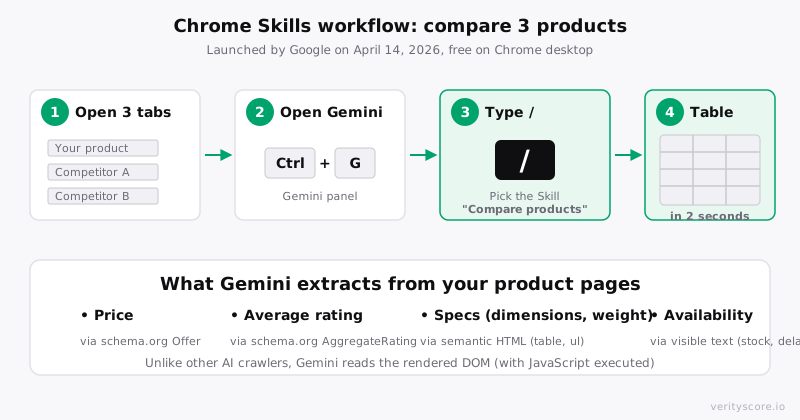
Scenario: a visitor is torn between your running shoe and 2 competitors.
- Opens 3 tabs: your product page + Nike + Adidas
- Activates Gemini (
Ctrl+G) - Types
/, selects their “Compare running shoes” Skill - Adds the 2 other tabs via the
+button - Gemini produces a comparison table in 2 seconds:
| Criterion | Your brand | Nike | Adidas |
|---|---|---|---|
| Price | $149 | $179 | $159 |
| Average rating | 4.6 / 5 (342 reviews) | 4.5 / 5 (1,204 reviews) | 4.3 / 5 (856 reviews) |
| Weight | 280 g | 265 g | 290 g |
| Drop | 8 mm | 10 mm | 8 mm |
| Stated lifespan | 800 km | N/A | 600 km |
The visitor sees instantly which product best matches their criteria.
How Gemini reads your pages
Here’s where Chrome Skills sets itself apart from every other AI commerce tool.
Gemini in Chrome runs inside your browser. It accesses the DOM after JavaScript execution. Concretely, it sees what a human sees: real-time pricing, star rating widgets, current stock, available variants (Google Chrome DevTools Blog).
Comparison with other AI crawlers
| Capability | Gemini in Chrome | GPTBot / ClaudeBot / PerplexityBot |
|---|---|---|
| Executes JavaScript | ✅ Yes (full browser) | ❌ No |
| Reads rendered DOM | ✅ Yes | ❌ No (source HTML only) |
| Sees dynamic widgets | ✅ Yes | ❌ No |
| Respects robots.txt | N/A (user-triggered) | ✅ Yes |
| Access to user session | ✅ Yes | ❌ No |
| Scale | One user at a time | Mass crawl |
This is a fundamental difference. Reviews loaded in JavaScript by Loox, Judge.me, or Yotpo that are invisible to ChatGPT and Perplexity are read by Gemini in Chrome. Gemini sees your 5,213 reviews the same way a human does.
But: the visitor using Chrome Skills only sees your page, not your review engine. If your stars take 3 seconds to load after rendering, Gemini may miss them during analysis.
What it changes for your product pages
Chrome Skills adds a new paradigm to AI visibility. Until now, the two paradigms were:
- Feed-driven (Google Merchant Center, ChatGPT feed): structured data pushed by the merchant, used for ChatGPT, Perplexity, AI Mode carousels
- Crawler-driven (GPTBot, ClaudeBot, PerplexityBot): server-side HTML read by AI crawlers for text responses and citations
Chrome Skills introduces a third paradigm: live-DOM-driven. Gemini reads your page in real-time, in the consumer’s browser, and compares it to competitor pages opened in parallel.
Data Gemini values most in a comparison table
By order of importance observed in Google’s official use cases:
- Price and currency
- AggregateRating: average rating + review count
- Technical specifications: dimensions, weight, material, color
- Availability: in stock, out of stock, shipping
- Shipping: delivery time, cost
- Product name and brand
- Key features: bullet points
- Images (alt text)
Priority optimizations
- Complete Product schema.org in JSON-LD. Don’t skip
offers.price,offers.priceCurrency,offers.availability,aggregateRating.ratingValue,aggregateRating.reviewCount,brand,sku - Structured HTML: semantic tags (
<table>for specs,<ul>for features, hierarchical headings) - Priority visible text: don’t hide price, stock, and specs in accordions closed by default or inactive tabs
- Explicit stock and shipping: “In stock, ships in 48h” in clear text, not just a green icon
- Price markup:
<span itemprop="price">or clearly identifiable data-attribute - Complete description on first render
A store with a complete product Golden Record wins a Chrome Skills comparison. A store with partial data, poorly optimized JS widgets, or hidden specs appears with “N/A” in comparisons.
Privacy and data collection
Google collects data from analyzed pages by default. If Gemini Apps Activity is enabled (default):
- Page contents and URLs are stored temporarily in your Google account
- Data may be used to improve Google services, including training generative AI models
- Activity is automatically deleted after 18 months by default, adjustable in settings
To disable collection:
- Go to myactivity.google.com/product/gemini
- Click “Turn off Gemini Apps Activity”
- Confirm
Important: even with the option disabled, Google retains conversations and page data for approximately 72 hours for service reliability and moderation reasons.
For merchants
You cannot prevent visitors from running Chrome Skills on your pages. Chrome Skills is a user-triggered browser feature, not a crawler. There is no robots.txt equivalent to opt out.
Your only lever of influence: the quality of the data Gemini extracts. The cleaner and more structured your HTML, the more favorably your product comes out in comparisons.
7-point checklist for Chrome Skills
To make your product pages “Chrome Skills ready”:
- ☐ Schema.org Product with
offers.price,offers.priceCurrency,offers.availability - ☐ Schema.org AggregateRating with
ratingValueandreviewCount - ☐ Price and stock visible as text in the initial DOM (not in an async JS widget)
- ☐ Specifications table in semantic HTML (
<table>with<th>and<td>) - ☐ Explicit shipping information in text (delivery, cost, returns)
- ☐ Key content outside accordions closed by default
- ☐ Descriptive alt text on product images
Related articles
- AggregateRating: make your reviews visible to AI
- The LLM landscape in 2026: 15 AI systems reading your product pages
- Schema.org Product on Shopify: complete guide
- Golden Record: product data completeness
- GEO Readiness: 9 factors of AI visibility